

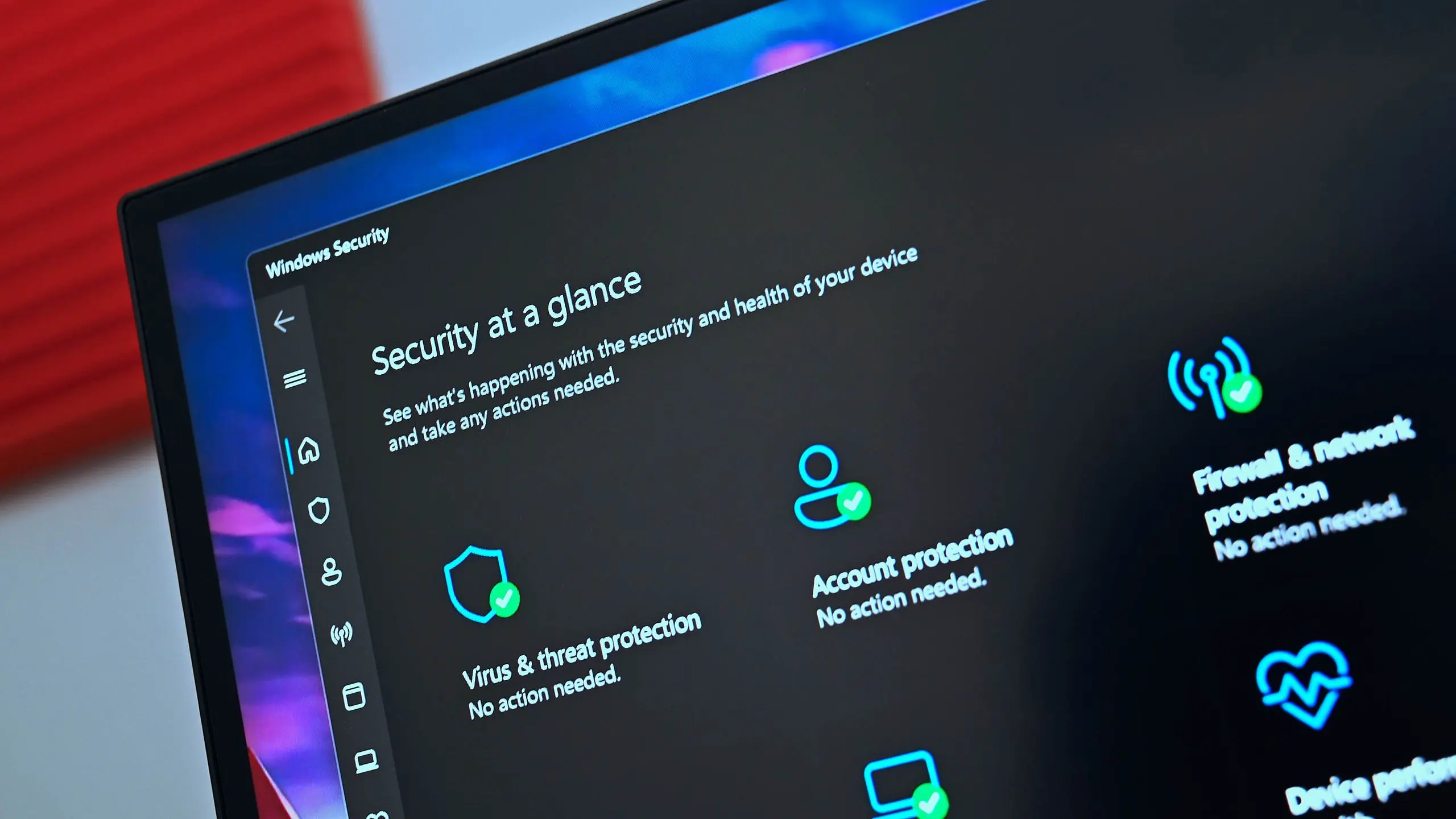
Imagine clicking an MP3 file in VLC, then waiting 30 seconds for the playback window to appear. This frustrating delay has become a common complaint in forums and social media, and the blame often falls on two software heavyweights: Microsoft Defender and VLC Media Player. Both serve essential roles on a Windows PC—one protects your system, the other plays your media—but their interaction can sometimes create severe performance bottlenecks. Understanding which one is actually at fault in your specific setup is the first step to resolving the slowdown.
The Problem: A 30-Second Delay on Every MP3
Users report that the delay happens consistently with every MP3 file, not just large ones or those stored on network drives. The player window may open immediately, but the song takes an eternity to start. In some cases, the entire interface appears frozen, and the hard drive light stays solidly active. This is not the usual quick refresh you expect when playing a small audio file. It suggests that some background process is doing far more work than necessary before the file is handed off to the audio renderer.
Typical Windows audio files are only a few megabytes in size. A modern SSD can read them in milliseconds. The 30-second delay indicates that other software is intercepting the file access, scanning it, and then giving VLC the green light. Two likely interceptors are Windows Defender's real-time protection and VLC's own media database and metadata extraction routines. Both are known to cause severe slowdowns under certain conditions, and both have been implicated in this exact symptom.
Why Windows Defender Is a Suspect
Windows Defender, now known as Microsoft Defender, is the built-in antivirus solution for Windows 10 and 11. Its real-time protection feature scans every file that is opened, copied, or executed. When you double-click an MP3, the shell asks the default player (VLC) to open it, but Defender also gets a chance to inspect the file. For most files, this scan completes in milliseconds. However, for files that are stored in archives, on network shares, or in folders protected by Controlled Folder Access, the scan can take longer.
More importantly, Defender is known to have performance issues with certain file types, especially media files that contain embedded metadata, album art, or unusual encoding tags. MP3 files with large ID3 tags can sometimes trigger a deeper inspection. Some security researchers have noted that Defender's scanner decompresses file sections and uses pattern matching that is not optimized for long media files. The result is a noticeable lag before the file is released to VLC.
Another angle is that Defender might be scanning the entire directory content if the MP3 is in a folder with many files. When you initiate playback, Windows might update the folder's index, and Defender scans each new entry. This is less common but has been reported in user logs. To test whether Defender is the culprit, you can temporarily disable real-time protection and see if the delay disappears. If it does, you have found the source.
Why VLC Might Be the Real Culprit
VLC is a feature-rich media player, but that richness comes with overhead. When VLC opens an MP3, it doesn't simply stream the audio; it parses the file container, reads metadata, looks for album art, checks for embedded lyrics, and updates its media library. On startup, VLC may also initialize preferences, load plugins, and connect to its network services. If VLC's configuration has become bloated or if a stale plugin cache exists, the initialization process can take an unusually long time.
One particularly problematic VLC feature is the media library, which is enabled by default. VLC scans your folders in the background and builds a database of your media. When you open an MP3, VLC might try to update that database with the current playback information. If a folder contains tens of thousands of files, the database update can cause a serious bottleneck. Metadata extraction also plays a role: VLC reads the ID3 tags to display the artist, title, album, and cover art. If a tag is malformed or uses a rare encoding, VLC's parser might struggle.
Another cause is VLC's file caching parameter, which controls how many milliseconds of data are read from the file before playback begins. The default setting is 300 ms, which is fine for most files. But if you or an earlier tweaking guide changed this value to a high number, such as 3000 ms or even 30000 ms, VLC will pre-read a massive amount of data before starting playback. That could easily manifest as a 30-second delay.
How to Diagnose the Bottleneck
Before changing any settings, you need to isolate the issue. Open VLC, go to Tools > Preferences, and select the "All" radio button to see advanced settings. Then look at the bottom where the log verbosity is set. Enable verbose logging or temporarily set it to debug. Then restart VLC, play an MP3, and wait for the delay. Afterward, check the VLC log file (usually located in %APPDATA%\vlc\vlc-log.txt) to see what is happening during those 30 seconds.
If the log shows repeated messages about "access_file" or "block reading," the issue is likely with the file I/O and possibly Defender. If you see entries about "metadata," "dbus," or "preparse," then VLC's own processing is the bottleneck. You can also use Task Manager to monitor VLC's CPU and disk activity. When the delay occurs, observe whether VLC is using high CPU (metadata extraction) or high disk (Defender scanning or database reads).
Another simple test is to disable Defender's real-time protection temporarily through Windows Security > Virus & threat protection > Manage settings. Do not keep it disabled for long, but during this test, if MP3s load instantly, you have identified Defender as the main cause. Conversely, you can move the MP3 to a new folder and exclude that folder from Defender, or you can launch VLC in safe mode (with no plugins) by using the command line vlc.exe --safe-mode to see if that eliminates the delay.
Fixing Windows Defender Slowdowns
If Defender is indeed the problem, the most effective fix is to add an exclusion for the folders where you store your music and media files. This prevents Defender from scanning those files in real time. To do this, go to Windows Security > Virus & threat protection > Manage settings > Exclusions > Add or remove exclusions, and add the folder that contains your MP3s. This is a safe practice as long as you are certain the folder is not a repository for untrusted downloads.
Another option is to disable Defender's reputational checks and cloud-delivered protection, as these features sometimes cause delays by querying online databases. While this reduces security slightly, it can speed up file access significantly. You can also adjust the Controlled Folder Access settings if you have enabled ransomware protection, because that module is known to increase file-handling latency. Add VLC as an allowed app in that section.
For the privacy-conscious, note that excluding media folders from Defender means valuable executive protection. If you are concerned about malware hiding in MP3 files, remember that attackers can embed malicious code in tags, but the classic Windows Media runtime and VLC's media parsers have robust security. As long as you keep your system updated, the risk is minimal.
Optimizing VLC for Faster MP3 Loading
If VLC is the source of the delay, there are several adjustments you can make. First, disable the media library: go to Tools > Preferences, under the "Media library" or "Places" section, uncheck the option to scan folders at startup or monitor files automatically. Second, clear VLC's cache and plugin cache. On Windows, the plugin cache file is called "plugins.dat" in the VLC installation directory or in %APPDATA%\vlc\cache. Delete it and restart VLC; it will rebuild with only the plugins you need.
Next, configure the file caching value. In Tools > Preferences, select "Show settings — All," go to Input/Codecs > Demuxers, and set the "File caching" value to a lower number, such as 200 ms. Do the same for "Live capture caching" if you use that. Also, in Input/Codecs, set the "Preparse size" to a smaller value (like 10 KB) so that VLC only reads a tiny portion of the file to get metadata. Disable "Enable media database" and "Carry over bits—reject" to reduce database overhead.
VLC also has an option to look up album art and lyrics online. These network requests can cause a delay, especially if your internet connection is slow or if the metadata provider is unreachable. Go to Tools > Preferences > Network and uncheck the options for "Fetch album art" and "Fetch lyrics." This will keep VLC from making external requests during playback.
Additional Factors to Consider
While Defender and VLC are the top suspects, other elements can contribute to the 30-second load time. Your file system and drive health matter. If your MP3s are stored on a failing mechanical hard drive, reading the file might take longer due to bad sectors. These sectors trigger retries that can be mistaken for software delays. Run CHKDSK or use the storage diagnostic tool in Windows Security to check for drive errors.
Audio device drivers can also be an issue. If your sound card or USB audio adapter's driver has a long initialization sequence, VLC might wait for the audio output to become ready. Updating your audio drivers to the latest stable version is a good idea. Old or buggy drivers are known to cause delays in both audio and video playback, especially after a Windows update.
Shell extension handlers are another hidden cause. When you right-click an MP3 in Windows Explorer, the shell loads the context menu handlers. If you have installed an audio tag editor or a media player that registers a shell extension, that extension might be loaded in the background when the file is accessed. VLC itself typically doesn't add shell extensions, but VLC's installer may have historically added an entry for "Play with VLC" and this might trigger a pre-load of VLC components. To test, launch VLC first, then open the MP3 from within VLC's file dialog; if this is instant, the issue is shell-related.
Finally, check whether Windows Indexing is running. The Search Indexer service scans media files for metadata and can lock files during indexing. If you have a large music library and indexing has not completed, VLC might need to wait for the indexer to release its lock. The solution is to configure the search index to exclude your music folder, or to let indexing finish when the system is idle. In the Services console, you can also restart the Windows Search service to clear a stuck indexing operation.
After applying the fixes above, run a real-world test. Double-click an MP3 and measure the time to playback. Whether it's Defender or VLC, the total elapsed should be under one second. If you still see a delay, revisit each change systematically, as sometimes multiple settings interact with each other. The goal is not to disable all security measures, but to create a configuration where your default media player and your antivirus coexist without turning a simple song into a 30-second wait.
Source:Windows Central News