

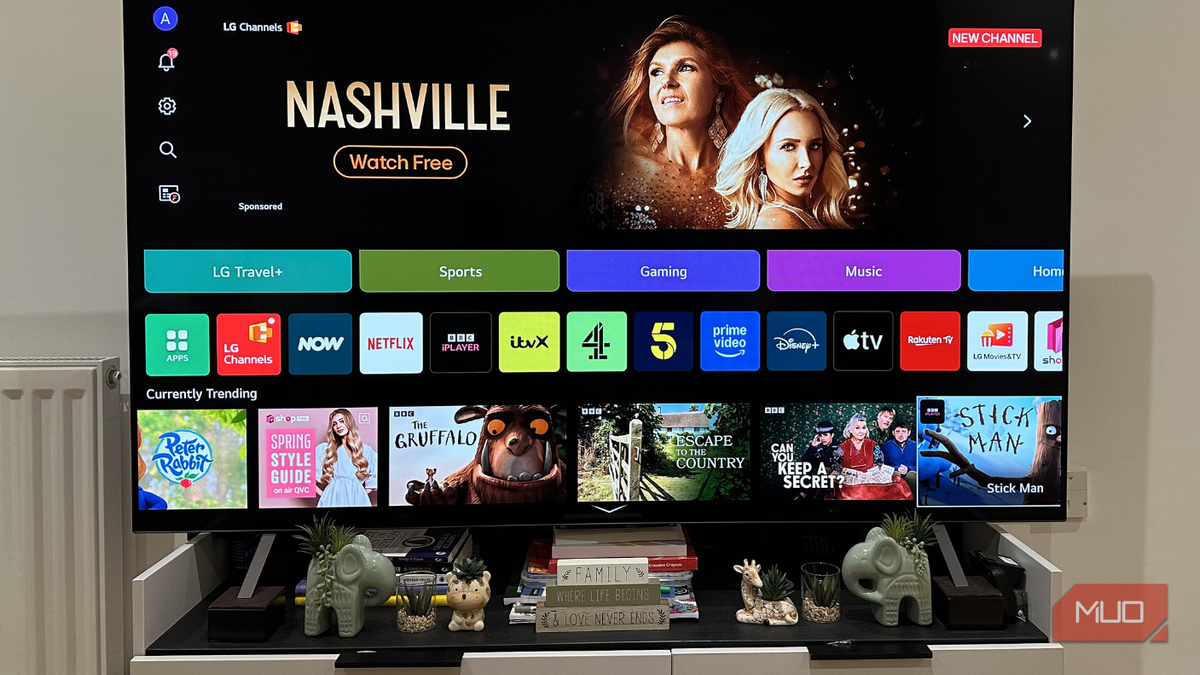
Your smart TV is essentially a data collection device that can also play Netflix and YouTube. And that's not an exaggeration by any means. By default, your smart TV tracks what you watch, constantly uses the microphone, logs your location, and builds an ad profile that gets sold to third parties. While these practices are technically mentioned in privacy policies, few users read them. Taking a few minutes to adjust settings can significantly reduce the amount of personal data flowing from your living room to advertisers and data brokers.
Automatic Content Recognition – The First Setting to Disable
How Your TV Watches You Watch TV
The single most invasive smart TV feature is Automatic Content Recognition (ACR). Almost every modern television includes this technology, yet most owners remain unaware of its operation. ACR works silently in the background, detecting exactly what appears on your screen. It does not matter whether you are watching Netflix, Hulu, cable television, a Blu-ray disc, or playing games on a PlayStation 5 or Xbox. The TV manufacturer captures a snapshot of your screen every few seconds and compares it against a database of known content. This allows the company to build a detailed profile of your viewing habits: what shows you watch, when you watch them, how long you stay on a particular program, and when you switch away.
Manufacturers sell this profile to advertisers, who use it to serve targeted ads. This practice is not new. In 2017, Vizio settled with the Federal Trade Commission over allegations that the company collected viewing data from millions of televisions without proper consent. Despite the settlement, the industry did not change. Samsung labels its version of ACR as Viewing Information Services, LG calls it Live Plus, while Fire TV and Roku simply name it Automatic Content Recognition. Every implementation is enabled by default. The only positive aspect is that users can disable ACR through the settings menu. On an Android TV or Google TV, navigate to Settings > Privacy > Usage & Diagnostics and toggle off the option for ACR. On other platforms, search for terms like “viewing data,” “content recognition,” or “ad tracking” in the settings.
Limit Microphone, Camera, and Location Access
Why Your TV Should Not Constantly Listen or Watch
A television’s primary function is displaying content. Yet manufacturers equip many smart TVs with always-on microphones, built-in cameras, and GPS-like location services. The microphone is intended for voice assistants and voice search, but when left active, the TV is always listening. The privacy trade-off is enormous, as recordings of ambient audio can be transmitted to cloud servers for analysis. If you do not rely on voice commands, disabling the microphone is a simple and effective privacy measure. On most smart TVs, you can find microphone permissions under Settings > Privacy > Microphone. Some TVs also offer a physical hardware switch to disconnect the microphone.
Cameras on televisions are still relatively rare, but where present, they pose an obvious privacy risk. A camera mounted above the screen can capture everything happening in the room. If the TV includes a physical shutter, close it when not in use. If no shutter exists, a piece of electrical tape over the lens provides a simple, effective barrier. Location tracking is the least useful permission for a stationary device. Manufacturers use location data to serve localized advertisements and sometimes share it with third-party analytics. Disable location services entirely unless you use weather or mapping applications on your TV. The setting is usually found under Settings > Privacy > Location.
Reset Your Advertising ID and Switch to a Private DNS
Small Changes That Significantly Reduce Tracking
Every smart TV generates a unique advertising ID – a string of numbers and letters that allows networks to track your device across apps and build a behavioral profile. You can reset this ID at any time, forcing the TV to generate a new identifier and effectively erasing the previously collected data. On Android TV or Google TV, go to Settings > Privacy > Ads and select Reset advertising ID. Some manufacturers offer a similar option labeled “Limit Ad Tracking” or “Opt Out of Interest-Based Ads.” Regularly resetting this ID prevents advertisers from maintaining a long-term profile of your viewing preferences.
Another powerful privacy improvement involves changing your TV’s DNS server. By default, the TV uses the DNS server provided by your internet service provider (ISP). This means your ISP can see every domain your television attempts to reach – each ad server, each analytics endpoint, each content delivery network. Switching to a third-party DNS provider like Cloudflare (1.1.1.1 and 1.0.0.1) or Quad9 (9.9.9.9) removes that visibility from your ISP. Additionally, some DNS services include built-in ad blocking, preventing your TV from contacting known tracking domains. To change DNS on an Android TV, navigate to Settings > Network & Internet > Wi-Fi or Ethernet (depending on your connection) > IP settings. Change from DHCP to Static, leave the IP address and gateway as they are, then enter your preferred DNS addresses in the DNS 1 and DNS 2 fields. Save the settings. The change takes effect immediately and applies to all network traffic from the TV.
Beyond the Basics – Additional Privacy Considerations
Disabling Personalized Ads and Third-Party Data Sharing
Most smart TV platforms allow you to opt out of personalized advertising entirely. On Roku, go to Settings > Privacy > Advertising and enable “Limit Ad Tracking.” On Amazon Fire TV, navigate to Settings > Preferences > Privacy > Interest-Based Ads and toggle it off. Samsung offers a similar option under Settings > Privacy > Viewing Information Services. These settings do not eliminate ads – they simply prevent the TV manufacturer from using your viewing data to tailor the commercials you see. You may still receive generic, non-targeted ads.
Another important setting to review is third-party data sharing. Many manufacturers share anonymized viewing data with analytics companies and marketing partners. Look for options like “Share Data with Third Parties” or “Usage Data Collection” under the Privacy menu. Disable these to prevent your viewing habits from being sold or shared. Remember that even with all these settings adjusted, your TV may still communicate with the manufacturer for firmware updates and essential services. The goal is to minimize unnecessary data collection without breaking the core functionality of the device.
Historical Context – How We Got Here
The Rise of Smart TV Tracking
Smart televisions have been collecting viewer data for over a decade. Early models relied on rudimentary tracking through cable boxes and set-top boxes, but the introduction of integrated smart platforms allowed manufacturers to gather far more detailed information. The Vizio case in 2017 was a watershed moment, revealing that the company had installed software on millions of televisions to track viewing behavior without explicit consent. Vizio settled with the FTC for $2.2 million and agreed to obtain opt-in consent before collecting data in the future. Despite this settlement, the practice continued across the industry, with companies like Samsung, LG, Sony, and Amazon implementing their own versions of ACR.
Privacy advocates have long warned that smart TVs represent a unique surveillance risk because they sit in private living spaces and are rarely turned off completely. Many televisions maintain an internet connection even when powered down, allowing background data transmission. The absence of strong federal privacy laws in the United States has allowed manufacturers to default these tracking features to “on,” relying on long, unread privacy policies to obtain legal consent. Consumers in the European Union benefit from stronger protections under the General Data Protection Regulation (GDPR), which requires explicit consent for non-essential data processing. However, even in the EU, many users accept tracking prompts without understanding the full implications.
Technical Deep Dive – How ACR Works and Why It Matters
Screen Fingerprinting and Content Matching
Automatic Content Recognition works by creating a “fingerprint” of the content on your screen. The television’s processor captures a small, low-resolution snapshot of the current frame. It then condenses that image into a unique hash – a short string of numbers representing the visual data. This hash is sent to a remote server maintained by the manufacturer. The server compares the hash against a vast database of known content fingerprints. When a match is found, the server sends back the metadata: the title, episode number, and timestamp. The TV does not need to send the full image – just the hash – but the server can still identify exactly what you are watching with high accuracy.
This process repeats every few seconds throughout your viewing session. Over the course of an evening, the TV may generate hundreds of these fingerprints. The collected data is aggregated into a viewing profile that includes the time of day, duration of viewing, and the specific content watched. Manufacturers use this profile to infer your interests, estimated income, household composition, and even political leanings. Advertisers pay top dollar for this information because it allows hyper-targeted ad campaigns. The same profile can also be used to recommend content within streaming apps, though this is a secondary use.
While ACR is a powerful tool for personalization and advertising revenue, its default activation without clear disclosure remains a significant privacy concern. The fact that it operates entirely in the background, with no visible indicator, makes it difficult for users to realize their television is actively monitoring every frame they watch. By disabling ACR, you not only stop this real-time tracking but also prevent the accumulation of your viewing history on the manufacturer’s servers.
Practical Steps to Lock Down Your TV
A Step-by-Step Privacy Audit
Performing a complete privacy audit on your smart TV takes about fifteen minutes. Start by opening the Settings menu and navigating to the Privacy or General section. Look for any option related to advertising, viewing data, usage diagnostics, or content recognition. Disable each one. Next, review permissions for microphone, camera, and location. Set microphone access to “Ask” or “Deny” unless you use voice commands. If your TV has a camera, disable it in settings and cover the lens. Turn off location services entirely.
After adjusting these settings, reset your advertising ID. This will clear any behavioral profile that has already been built. Finally, change the DNS settings to use a privacy-focused server. If you are unsure about using a static IP configuration, some modern routers allow you to set DNS at the network level, applying the change to all connected devices, including smart TVs. After completing these steps, restart your TV to ensure all changes take effect. You may also want to check for any additional manufacturer-specific settings by searching online for your TV model’s privacy guide.
It is worth noting that these settings may persist through factory resets. If you ever sell or donate your television, perform a factory reset first and then repeat these steps to ensure no personal data remains on the device. Some manufacturers also offer the option to delete all collected data associated with your device. Look for a “Delete Account Data” or “Clear Usage History” option under the Privacy menu.
By taking control of these settings, you transform your smart TV from a passive surveillance device back into a simple entertainment screen. The trade-off is minimal – you lose voice control and highly personalized recommendations, but you gain peace of mind knowing that your living room is not being used as a data extraction point. The industry is unlikely to change its default practices without stronger regulation, so individual action remains the most effective defense.
Source:MakeUseOf News