

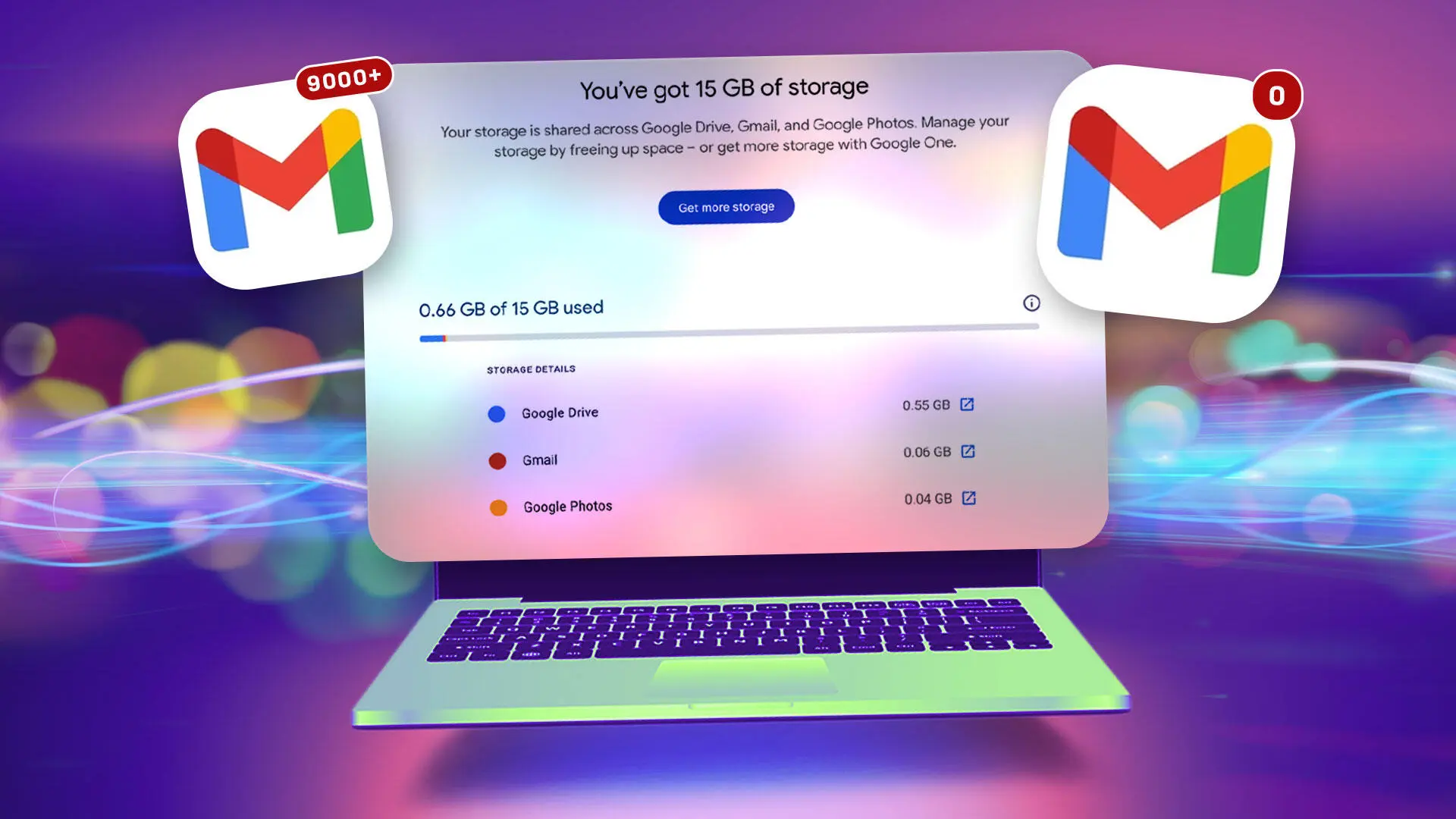
If you've been ignoring those 'storage full' warnings in Gmail, it's time to take action. Google is planning to end POP3 support later this year, which means a popular free workaround for reclaiming storage will soon disappear. But there's still a window to move your old emails to a new account and wipe your primary inbox clean—without spending a cent on additional storage.
Gmail's 15GB of free storage is shared across Gmail, Google Drive, and Google Photos. Over time, attachments, photos, and videos can quickly eat up that space. Once your account is full, you can't send or receive new emails, and you're forced to either delete messages or pay for a Google One subscription. The nuclear option is to create a second Gmail account and use POP3 to pull all messages from your main account into the archive.
Why You Should Act Now
Google announced that POP3 support for new users ended in the first quarter of 2026, but existing users can still use it until later this year. After that, the protocol will be shut off completely. This means the transfer method described here will no longer work. If you've been procrastinating, now is the time to move.
How Much Storage Do You Actually Have?
The 15GB limit sounds generous, but it's shared across three services. A few large videos in Google Photos, a couple of shared files in Drive, and years of email attachments can quickly push you over the edge. Checking your storage usage is easy: go to Google Account settings or use the storage page in Gmail. Many users are shocked to find they've used 80% or more of their free space.
Step-by-Step Guide: Transferring Your Gmail Messages
Back Up First
Before you start, back up your emails using Google Takeout. This downloads all your messages as a file to your computer or external drive. For an account with 75,000 messages, the download took about two hours. The backup ensures you have a copy in case something goes wrong during the transfer.
Enable POP in Your Original Account
Log into your primary Gmail account. Go to Settings (gear icon) > See all settings > Forwarding POP/IMAP tab. Select 'Enable POP for all mail.' Under 'When messages are accessed with POP,' choose 'delete Gmail's copy' so the emails are removed after transfer. Save changes.
Create a Second Gmail Account
Set up a new Gmail account that will serve as your archive. Keep it simple: you can name it something like '[yourname].archive@gmail.com'. This account will receive all the transferred messages.
Configure the Import
In your new archive account, go to Settings > See all settings > Accounts and Import tab. Next to 'Check mail from other accounts,' click 'Add a mail account.' Enter your original Gmail address. Choose 'Import emails from my other account (POP3).' Enter the password. You may need to create a Google App Password instead of using your regular password.
Create a Google App Password
If your standard password doesn't work, visit myaccount.google.com/apppasswords (requires 2-Step Verification enabled). Create a 16-digit app password with a label like 'Transfer Bulk Email.' Use this password in the import setup. Note: Google shows the password only once, so write it down.
Complete the Import Setup
After entering the app password, set Port to 995. Check the boxes: 'Always use a secure connection (SSL),' 'Label incoming messages,' and 'Archive incoming messages (Skip the Inbox).' Click Add Account. You'll be asked if you want to be able to send mail as your original address—choose yes to close the setup.
What Happens During the Transfer
The transfer process begins automatically. It can take hours or days depending on the number of emails. In a test with 75,000 messages, it took about two days. Once all messages have been copied to the new account, the original account will move the emails to its Trash folder. You must manually empty the Trash to actually free up space—this can take an hour for large volumes.
What Gets Transferred and What Doesn't
Gmail transfers all inbox, sent, and archived messages, but it does not transfer Drafts or Spam. Drafts must be handled manually—you can delete them or move them to the new account yourself. Spam is automatically deleted after 30 days, so you can ignore it or delete it sooner. Labels and filters may not carry over perfectly, so you might need to reorganize your archive account.
After the Transfer: Final Steps
Once the transfer completes, log into your archive account. Go to Settings > Accounts and Import. Under 'Check mail from other accounts,' click delete for the original account. This stops the automatic syncing. If you created an app password, delete it from the Google App Passwords page. Then your original account is clean: you've reclaimed almost all of your 15GB of free storage.
Important: Google deletes accounts that are inactive for two years. So even if you don't plan to use your archive account regularly, log into it at least once every two years to keep it active. You can also set up a simple email forwarder or use it for newsletters.
This method works because POP3 pulls messages from the server and then deletes them from the source, effectively moving your email archive off your primary account. With POP3 being phased out, this is likely the last time you can do this for free. Act now to avoid the storage crisis.
For even more storage, consider deleting large files from Google Drive or Photos, or compressing attachments before sending. But if you want a complete reset without paying, the POP3 transfer is your best bet.
Source:CNET News